Setting up a new property in GA4
- Go to https://analytics.google.com and login or create an account.
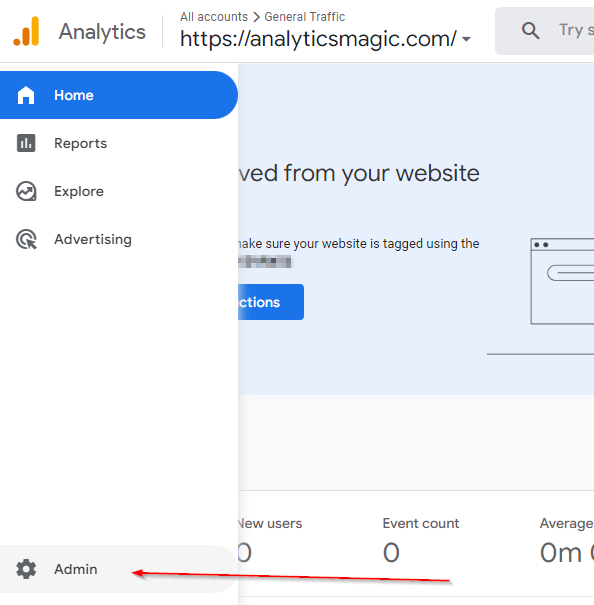
- After you have login, click on the small gear icon for Admin:
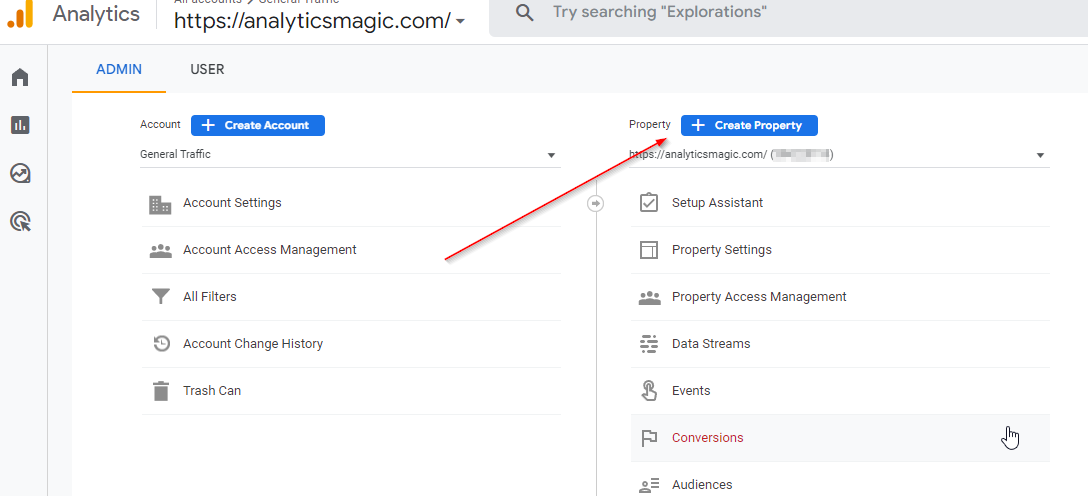
- Click on the “+ Create Property” button:
- Once you are on the “Create a property” page, you can set the property name, reporting time zone and currency values:
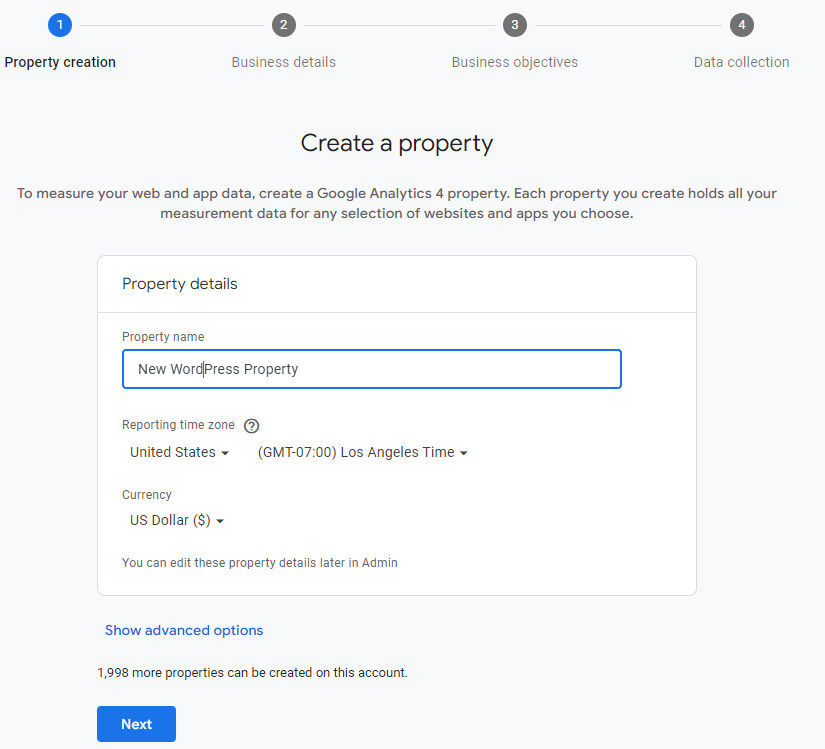
The property name will be what you will see in the drop down for your property when you are changing it and selecting it for reports so make sure you give it a verbose name.
Set the time zone to what you want your reports to use, regardless of where the data comes from. If you change the time zone, it only affects data collected after the time zone change.
The currency value should be set to your country currency value.
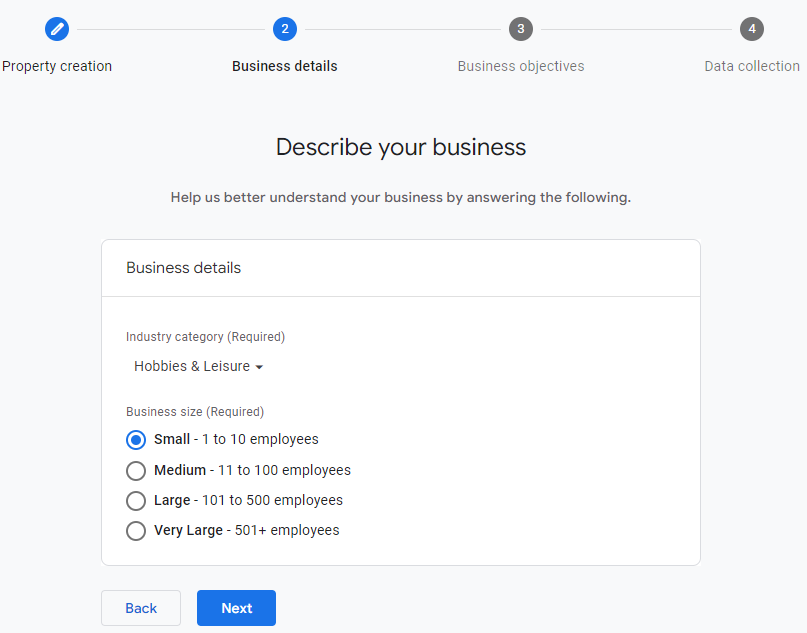
Don’t worry about the advanced options, they are probably not going to be relative by the time you are creating a new property. - Google would like to know a little bit about your reasons / needs, select the closest industry category to your business (if you have one) and then select the estimated number of employees you might have:
- Setup your business objectives for your site:
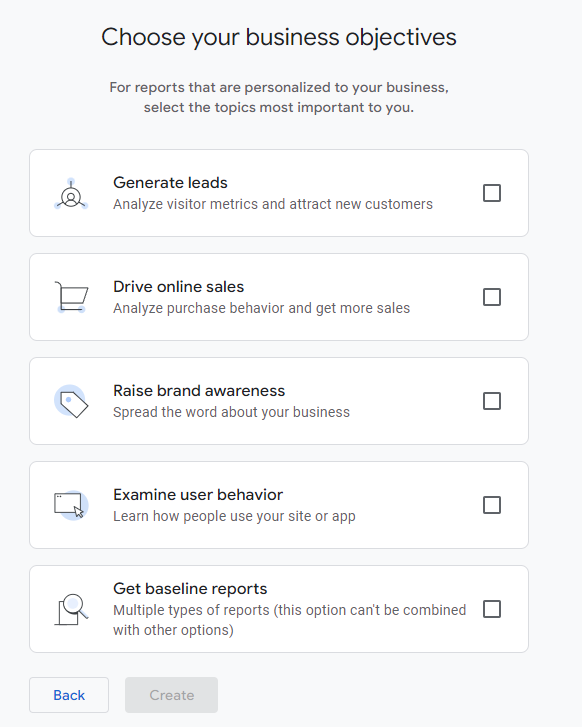
Select all of the options that fit your goals, if you are just wanting to monitor who and what is happening on your site / app then select the checkbox “Examine user behavior”. Then click on the “Create” button and then move on to Data Collection. - The last step is to choose a platform to collect your data:
