Google Analytics 4 Data Streams
In GA4, a ‘data stream’ is a source of data sent to your GA4 property. It could be from a website, an iOS app, or an Android app. The purpose of data streams is to collect all user interaction data from different platforms where your business is active.
When you create a new property in GA4, you will be asked to add a new data stream. For example, if you have a website and a mobile app for your business, you would set up two data streams within a single GA4 property – one for the website and one for the app.
Each data stream generates a unique Measurement ID, similar to the Tracking ID in Universal Analytics, and this is included in your website or app tracking code to send data to your GA4 property.
The introduction of data streams is significant because it simplifies the process of tracking user interactions across multiple platforms. In Universal Analytics, you had to create separate properties for your website and your app and try to stitch the data together manually. But in GA4, all the data comes into a single property from different data streams, enabling you to track a user’s journey more holistically across platforms.
Here are some key types of data that are automatically collected from each data stream:
- Page views: When a user visits a page on your website, a page_view event is automatically logged.
- User engagement: The user_engagement event is automatically logged when a user interacts with your website or app.
- First visit: The first_visit event is logged automatically when a user visits your website or app for the first time.
- E-commerce events: For apps, certain e-commerce events like view_item, add_to_cart, and purchase are automatically collected.
Setting up a new Data Stream
After you have setup a property in UA4, you should be prompted to create a data stream for it. If you want to create a new data stream for tracking additional properties or for different platforms you just need to:
- Log into Analytics.
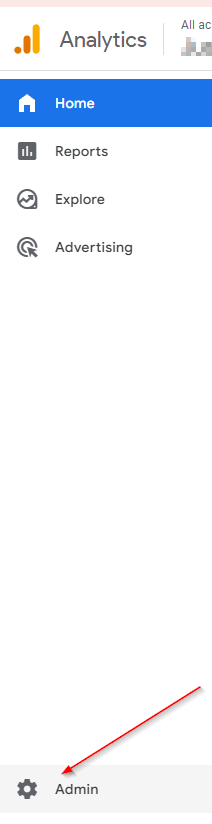
- Select the Admin Tab:
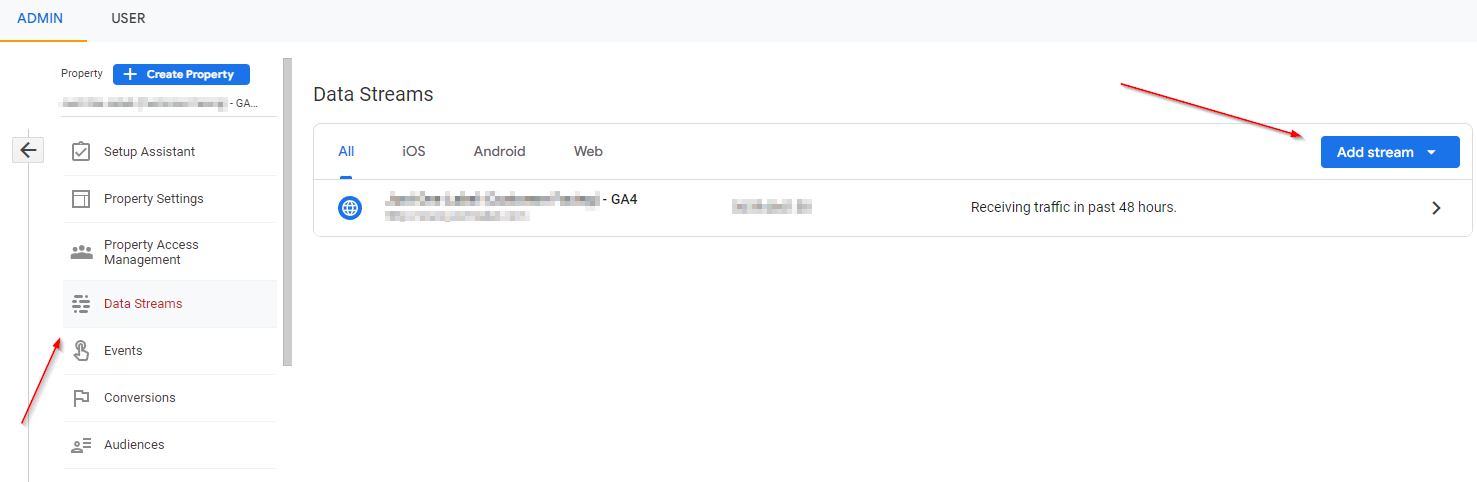
- Then select the “Data Streams” option and then click on the “Add stream” button:
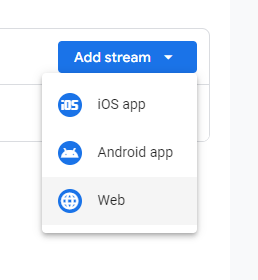
- Figure out what type of stream you wish to add from the choices:
iOS / Android App Data Stream
In order to setup a iOS / Android app, you have enable the Firebase SDK. Analytics creates a corresponding Firebase project and app data stream, and automatically links the Firebase project to your property if your project and property are not already linked.
For iOS you will need to enter in the iOS bundle ID and the App Store ID (which it says is optional but its probably better to enter it anyways). For Android Apps, enter in the package name and the app name. After this has been done you will need to download the config file for your app and then if you already haven’t done so, you will need to add Google Analytics for Firebase SDK to your app. You can go to this link here for more detail on integrating Analytics into your app.
Web
In most cases, a single web stream will meet your measurement needs. Using multiple web streams to measure different pages or sites in a single user’s journey may lead to inconsistent results. When your property was created / migrated initially it most likely created a default Data Stream for it and it should be more than enough but if you have your reasons you can create another.
You will be prompted to enter in your website (or the other website) that you want this new Data Stream to be associated with. You can also at this time, enable ‘Enhanced measurement’ which will let you track the following interactions and content on your site:
- Page views
Capture a page view event each time a page loads or the website changes the browser history state. Optionally turn off browser history-based events under advanced settings. - Scrolls
Capture scroll events each time a visitor gets to the bottom of a page. - Outbound clicks
Capture an outbound click event each time a visitor clicks a link that leads them away from your domain(s). By default, outbound click events will occur for all links leading away from the current domain. Links to domains configured for cross-domain measurement (in Tagging Settings) will not trigger outbound click events. - Site search
Capture a view search results event each time a visitor performs a search on your site (based on a query parameter). By default, search results events will be fired any time a page loads with a common search query parameter in the URL. Adjust which parameters to look for under advanced settings. - Video engagement
Capture video play, progress, and complete events as visitors view embedded videos on your site. By default, video events will be automatically fired for YouTube videos embedded on your site with JS API support enabled. - File downloads
Capture a file download event each time a link is clicked with a common document, compressed file, application, video, or audio extension. - Form interactions
Capture a form interaction event each time a visitor interacts with a form on your website.